Email Workflow Automation: Five Examples for Shared Inboxes

A customer emails a shared inbox asking to change an order. The message is easy to read, but the next steps are scattered: someone must identify the request, assign an owner, check whether the change needs approval, reply, and make sure the customer hears back. If any step lives only in a teammate's memory, the thread can stall.
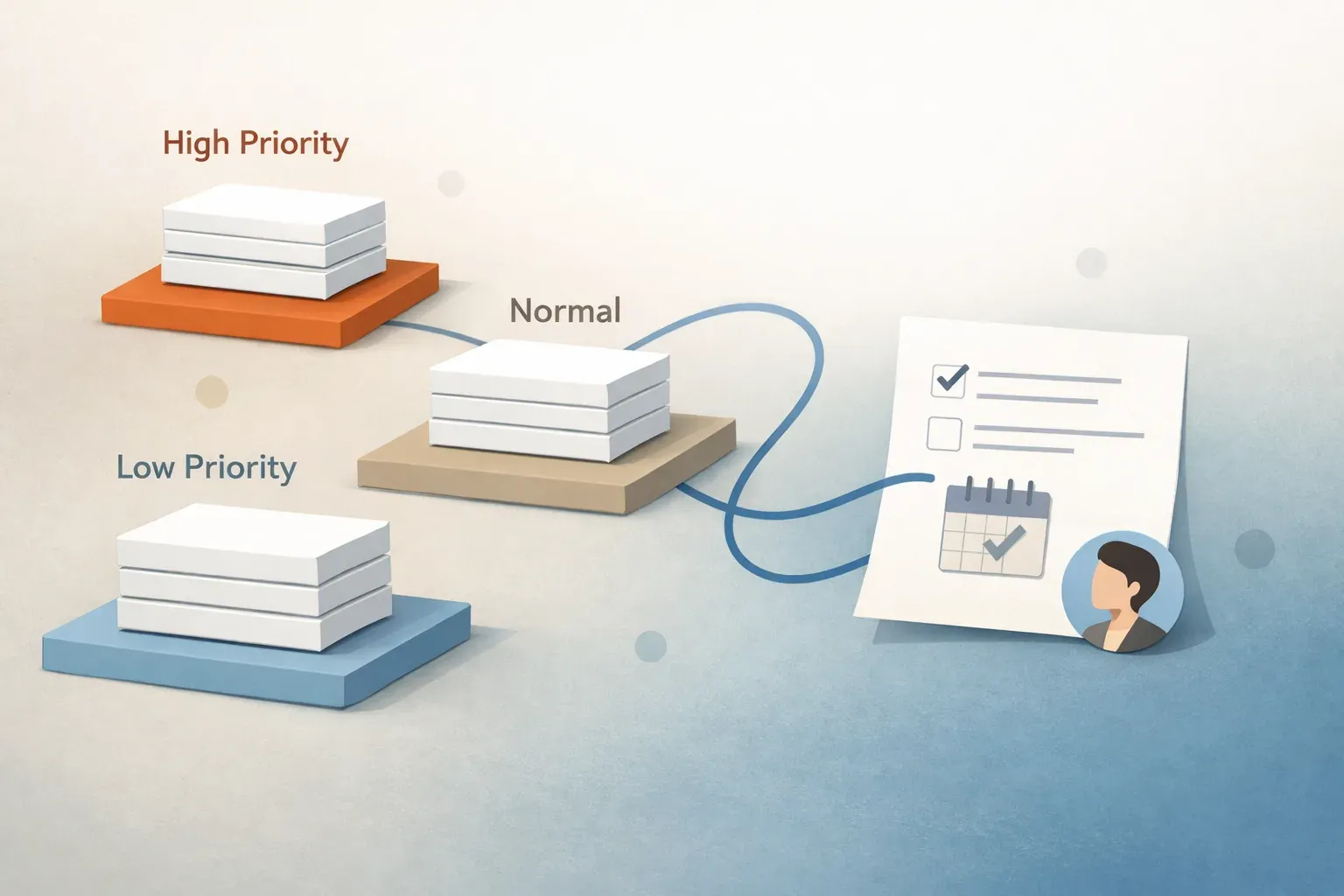
Email workflow automation moves a message through repeatable steps based on its content and status. Those steps can include assignment, routing, approval, follow-up reminders, and escalation. The goal is not necessarily to send a reply without a person involved. It is to make the next action visible and put it in the right hands.
A useful distinction is: AI determines what a message means; automation executes the next step. AI might identify an order-change request and flag a deadline. A workflow then assigns the request, places a draft in review, or reminds the owner if the thread remains unanswered.
What makes an email workflow different from a filter?
A filter usually performs one action when a message arrives: move it to a folder, add a label, or forward it based on a sender or keyword. A workflow accounts for what happens after that first action. It can change the thread's state as a person reviews it, replies, waits for information, or hands it to another team.
For example, a filter might send every message containing "invoice" to a finance folder. That folder could contain a routine receipt, a request for a copy, and a customer disputing a charge. An email workflow can treat those as different jobs: archive the receipt for reference, assign the copy request, and put the dispute in a review queue. The team still decides how to resolve the dispute, but it does not have to discover it by checking a folder.
Each workflow needs four clear parts:
- Entry condition: Which messages should enter? This may depend on the mailbox, request type, urgency, or thread context.
- Next action: Should the system assign, route, prepare a draft, request approval, or set a reminder?
- Owner or reviewer: Who is accountable when the message needs a decision?
- Exit condition: What ends the workflow: an approved reply, a resolved request, or a handoff to another team?
The exit condition matters. Without it, a reminder can keep firing after someone has replied, or an escalation can reach a manager after the issue is resolved.
Five email workflow automation examples
These examples describe workflow patterns a team can configure around its own responsibilities and response expectations. They are most useful when a shared inbox receives recurring types of requests.
1. Assign a request to a named owner
Situation: Several teammates monitor support@, and a customer asks for help with an account issue.
Workflow: The message is identified as an account request and assigned to the teammate responsible for that account. If ownership is unclear, it goes to a team queue for someone to claim.
Assignment answers "Who is working on this thread?" It prevents two people from writing separate replies and makes an unclaimed request visible. A good assignment workflow also leaves room to correct a wrong match. If the account owner is away or the message concerns a different product, a teammate should be able to reassign it without losing the thread's context.
2. Route work to the team that can resolve it
Situation: A customer writes to a general inbox about a failed payment, but the support team cannot change billing details.
Workflow: The request is classified as a billing issue and routed to the billing queue. Support does not need to forward the email manually or leave a note telling someone else to find it.
Routing answers "Which team or queue should handle this?" Assignment answers "Which person owns it?" A workflow may do both: route the payment issue to billing, then assign it to the teammate on duty. Keeping these decisions separate helps when a team changes its staffing but the request type stays the same.
For more on the first-pass classification that makes routing possible, see how AI email triage works.
3. Hold a draft for approval
Situation: A customer requests a refund outside the usual policy. A teammate can prepare a response but cannot authorize the exception.
Workflow: The request is assigned, a draft is prepared, and the thread moves to a manager for review. The manager can approve or revise the response before it is sent.
Approval is a workflow step, not a delay added to every email. Reserve it for decisions where the cost of a wrong answer is high, such as exceptions, financial commitments, or sensitive customer replies. Define who can approve, what they are checking, and what happens if they reject the draft. Otherwise, "pending approval" becomes another place for mail to sit unnoticed.
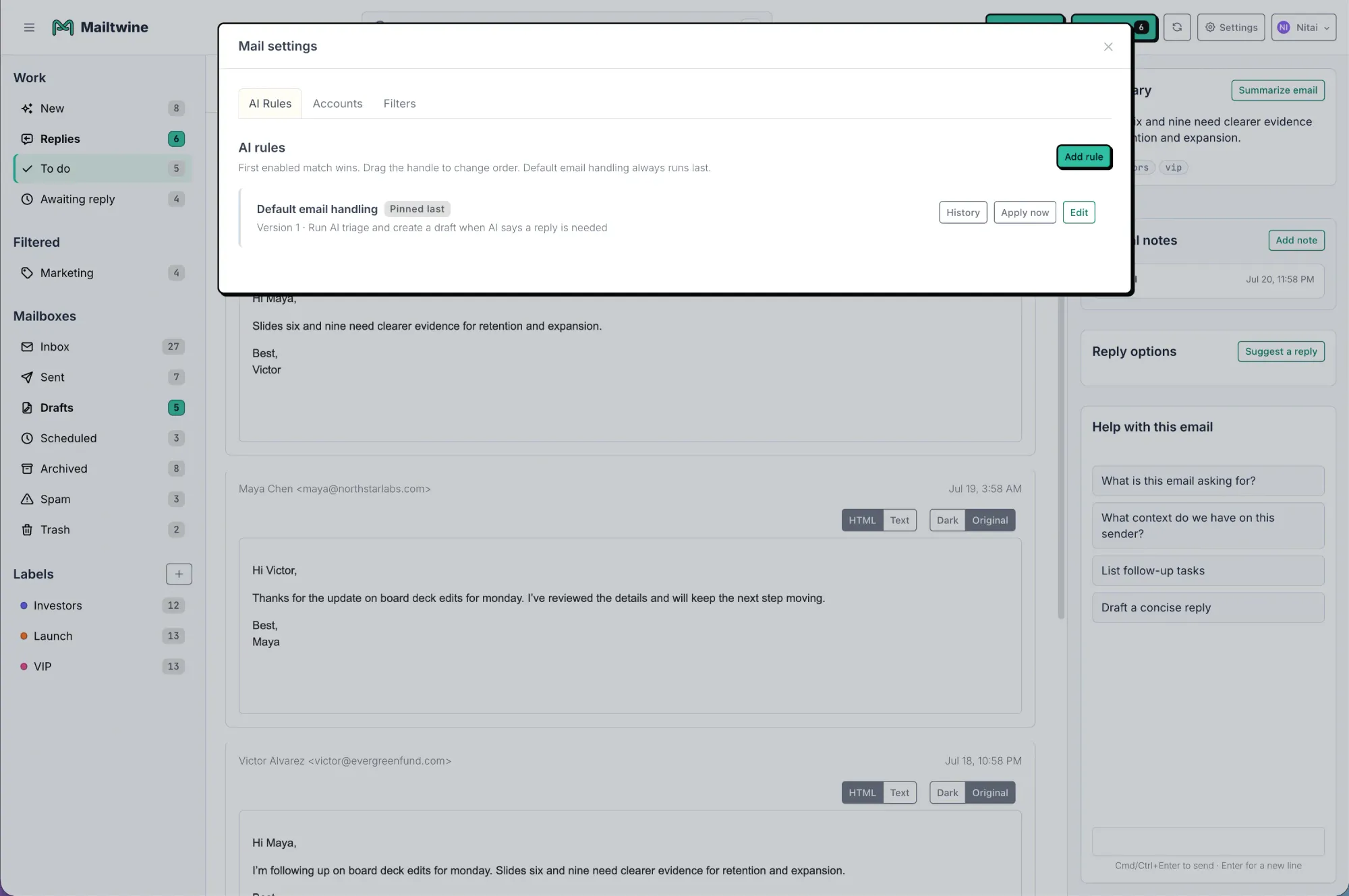
Mailtwine supports drafting, routing, and approvals while keeping people in control of review. Its approval and sending details explain the distinction between review-first handling and limited auto-send under an admin-approved rule.
4. Remind the owner to follow up
Situation: A teammate tells a customer, "I'll send you the updated details tomorrow," then waits for information from a colleague.
Workflow: The thread stays with its owner and receives a follow-up reminder if the promised update has not been sent by the chosen time. Once the owner replies or closes the request, the reminder no longer applies.
This is different from sending the customer an automatic "just checking in" email. The immediate job is to prompt the responsible person to keep a commitment. A useful reminder should say what is outstanding and point back to the original thread, so the owner can act without reconstructing the conversation.
5. Escalate a stalled or urgent thread
Situation: A customer reports that a service is unavailable. The message needs prompt attention, but its assigned owner has not responded.
Workflow: The request receives high priority, goes to the responsible queue, and escalates to a designated backup if it remains unaddressed after the team's chosen interval.
An escalation should have a specific trigger and destination. "Urgent" in a subject line alone is a weak trigger; the reported impact and conversation context also matter. The backup needs to know whether they should take ownership, contact the current owner, or approve a proposed response. The workflow should stop escalating when someone has taken the required action.
How the steps fit together
Consider a shared inbox that receives this message: "Our shipment arrived without the documents we need for tomorrow's delivery. Can you send them today?"
A practical workflow could run as follows:
- Interpret the request. Identify it as a missing-document issue with a stated deadline, rather than treating it as a routine status update.
- Route and assign it. Place it in the operations queue and give it to the teammate responsible for shipment documents.
- Prepare the response. Draft an acknowledgment or proposed answer for the owner to check against the actual documents available.
- Request approval if needed. If the response promises a delivery time or makes an exception, send that draft to the appropriate reviewer.
- Track the open commitment. Remind the owner if the documents or customer update are still outstanding at the agreed check-in time.
- Escalate if the deadline is at risk. Bring the thread to a backup owner before tomorrow's delivery becomes an unresolved surprise.
The software should not invent a document or promise it has been sent. Its job is to surface the request, connect it to an owner, and keep the next decision from disappearing. This is the operational layer that a sorting rule alone cannot provide.
Start with one workflow your team can inspect
Pick a request type that appears often and has an obvious owner. A billing question, account-access request, or order change is easier to test than a workflow intended to classify every message on day one.
Write down what should happen in plain language: "When an account-access request reaches this inbox, send it to the account team, assign an owner, and flag it for review if it asks for a change we cannot verify." Then test that instruction against real variations, including vague subject lines, replies within older threads, and messages that contain two requests.
During the first review period, check three things: Were the right messages included? Did the right person get ownership? Did reminders and escalations stop when the work was done? Adjust the workflow when you find a mismatch rather than asking teammates to work around it.
Mailtwine is built for this kind of email triage across existing mailboxes, including Helpmonks, Fastmail, and IMAP. It helps classify and prioritize incoming mail, then supports routing, drafting, and review as the thread moves forward. For the broader setup, see how Mailtwine handles an AI email triage workflow.
The test of an email workflow is not how many actions it performs automatically. It is whether each thread has a clear next step, an accountable owner, and a way to catch work that has stopped moving.