Email Sorting: How AI Triage Turns Busy Inboxes Into Action Queues

Shared inboxes break when every message looks equally important. Sales requests, support issues, vendor updates, invoices, internal approvals, and newsletters all land in the same place. The result is predictable: urgent emails get buried, teams duplicate work, and inbox cleanup becomes a daily tax.
Email sorting fixes this by turning incoming messages into organized, prioritized work. This article explains how AI email sorting works, where it beats manual rules, how it supports email triage and automation, and how Mailtwine helps companies sort and route emails automatically across supported inboxes.
What Is Email Sorting?
Email sorting is the process of organizing incoming messages into categories, priorities, queues, labels, or workflows based on their content and context.
Basic email sorting uses folders, filters, and rules. AI email sorting goes further by reading the meaning of each message, identifying urgency, detecting intent, and deciding where the email should go next.
For teams, email sorting is not just inbox cleanup. It is the first step in a reliable email workflow.
Why Manual Email Sorting Fails
Manual sorting works when the inbox is small and predictable. It fails when message volume grows, multiple people share responsibility, or customer-facing work depends on fast response times.
Common failure points include:
- Static rules miss context: A keyword rule may catch “urgent,” but miss a customer who says “we are blocked.”
- Folders become dumping grounds: Teams move messages into folders but do not create an action path.
- Important emails get buried: High-value leads, escalations, and approvals compete with low-value updates.
- Teams duplicate effort: Two people reply to the same thread, or nobody replies because ownership is unclear.
- Rules require maintenance: Every new customer, vendor, project, or process adds another filter.
- No priority logic exists: Traditional inboxes sort by time, not importance.
- Follow-ups depend on memory: If no one flags a message manually, it disappears down the list.
The core problem is not the inbox itself. The problem is that email clients were built for receiving messages, not for turning messages into structured work.
AI Email Sorting for Busy Inboxes
AI email sorting uses machine learning and natural language understanding to classify incoming email based on what the message means, not just what words it contains.
Instead of forcing users to build dozens of brittle rules, AI can evaluate signals such as:
- Sender identity
- Email intent
- Customer status
- Message urgency
- Thread history
- Topic or department
- Required action
- Sentiment or escalation risk
- Attachments and document types
This creates a better sorting layer for teams that handle high-volume inboxes.
From Time-Based Inbox Order to Priority-Based Queues
Most inboxes show the newest message first. That is a poor way to manage work.
AI email sorting can rank messages by urgency and business value. A customer escalation can move above a newsletter. A signed contract can move above a routine status update. A support request from a key account can move directly into a triage queue.
The inbox becomes an action queue instead of a chronological pile.
From Manual Folders to AI Categories
Traditional folders require users to decide where everything belongs. AI categories reduce that manual work.
Examples of useful email sorting categories include:
- New customer inquiry
- Existing customer support
- Billing or invoice issue
- Legal or contract review
- Sales opportunity
- Vendor communication
- Internal approval
- Spam or low-priority update
- Follow-up required
The goal is not to create more folders. The goal is to make the next action clear.
From Static Rules to Context-Aware Sorting
Rules are useful for simple cases. For example, “If sender contains billing@vendor.com, move to Finance.”
But many emails are not that predictable. A customer may use different phrasing each time. A high-priority issue may not contain the word “urgent.” A support thread may turn into a renewal risk.
AI sorting can account for context, so the same sender can be routed differently depending on the message content.
From Inbox Cleanup to Email Workflow Automation
Email sorting should trigger the next step.
Once an email is classified, automation can help with:
- Applying labels
- Routing to the right queue
- Assigning ownership
- Creating follow-up reminders
- Escalating urgent messages
- Grouping similar requests
- Preparing summaries for review
This is where email sorting connects to email workflow automation. Sorting identifies what the message is. Automation decides what happens next.
How AI Email Sorting Works
AI email sorting usually follows a simple workflow:
Incoming email
      ↓
AI reads sender, subject, body, thread context, and metadata
      ↓
Message is classified by intent, topic, urgency, and required action
      ↓
Email is labeled, prioritized, routed, or queued
      ↓
Team reviews, responds, resolves, or automates follow-up
A strong email sorting system should support both AI decisions and human review. Teams need control over categories, escalation logic, and exception handling.
Email Sorting vs Email Triage vs Email Automation
These terms are related, but they are not the same.
| Concept | What It Does | Example |
|---|---|---|
| Email sorting | Organizes emails into categories, labels, or queues | Move vendor invoices into Finance |
| Email triage | Decides what needs attention first | Escalate a blocked customer issue |
| Email automation | Performs an action based on logic | Assign a support request to the right team |
| AI inbox management | Combines sorting, triage, prioritization, summaries, and workflow support | Turn a shared inbox into managed work queues |
Email sorting is the foundation. Email triage adds priority. Email automation adds action. AI inbox management ties the system together.
Where AI Email Sorting Creates Value
AI email sorting is most useful when email volume, response time, or handoff complexity affects business outcomes.
1. Customer Support Inbox Triage
Support teams often receive mixed messages in one inbox:
- Bug reports
- “How do I” questions
- Account access issues
- Billing problems
- Feature requests
- Complaints
- Churn risks
AI sorting can separate these messages by topic and urgency. A login failure from a paying customer can move to a high-priority queue. A feature request can be labeled for product review. A routine question can move to a standard response workflow.
The result: fewer missed issues and less manual scanning.
2. Sales Inquiry Prioritization
Sales inboxes contain both valuable leads and low-intent noise.
AI email sorting can classify messages based on buying signals:
- Demo request
- Pricing question
- Procurement request
- Partnership pitch
- Existing customer expansion
- Low-value solicitation
High-intent leads can be routed faster. Low-priority outreach can be grouped separately. Sales teams spend less time sorting and more time responding to qualified opportunities.
3. Finance and Invoice Routing
Finance teams lose time when invoices, receipts, payment reminders, and contract updates are mixed with general email.
AI sorting can identify:
- New invoices
- Payment confirmations
- Overdue notices
- Purchase orders
- Vendor tax documents
- Contract attachments
These messages can be labeled and routed to the right queue without relying only on sender-based rules.
4. Shared Inbox Ownership
Shared inboxes create ownership problems. Everyone can see the message, but nobody knows who owns it.
AI email sorting can help assign messages by category, urgency, or department. For example:
- HR questions go to People Ops
- Contract requests go to Legal
- Technical questions go to Support
- Expansion requests go to Customer Success
- Billing issues go to Finance
This reduces “who is handling this?” messages and improves accountability.
5. Follow-Up and SLA Management
Sorting is not complete when an email is placed in a category. Many messages need follow-up.
AI-assisted email workflow automation can flag messages that require action, such as:
- “Can you send this by Friday?”
- “Please confirm receipt.”
- “We need approval before launch.”
- “Following up on the contract.”
- “This is still unresolved.”
These messages can trigger reminders or stay visible until resolved. That matters for teams with response-time commitments.
6. Long Thread Review and Summaries
Long threads slow down triage because the reviewer must read the entire conversation before acting.
An AI email summarizer can help by condensing the thread into:
- Main issue
- Latest request
- Parties involved
- Open decisions
- Next action
Sorting and summarization work well together. Sorting gets the message to the right place. Summaries help the team act faster once it arrives.
Automate Repetitive Email Tasks Without Changing Your Workflow
The best email sorting systems do not force teams to abandon their existing inboxes. They sit between incoming messages and team action.
Common automated actions include:
- Sort incoming email into categories
- Label messages by topic or urgency
- Route emails to shared queues
- Flag messages that need a reply
- Identify unresolved threads
- Group related requests
- Send reminders for follow-up
- Reduce low-value inbox noise
This matters because teams rarely fail from lack of email tools. They fail because the tool requires too much manual discipline.
AI should reduce inbox decisions, not create another system to babysit.
How Mailtwine Powers AI Email Sorting
Mailtwine is email triage software that helps companies sort and triage emails automatically with advanced AI features.
It is built for teams that need a smarter layer over busy inboxes, not another place to manually drag messages around.
Mailtwine supports:
- AI email sorting: Categorize incoming messages by topic, intent, urgency, and required action.
- Email triage: Prioritize messages so teams can handle the most important work first.
- Email automation: Trigger sorting, labeling, routing, and follow-up workflows.
- AI inbox management: Reduce clutter and turn incoming email into structured work.
- Context-aware classification: Use message content and workflow logic instead of relying only on keyword filters.
- Supported email connections: Works natively with Helpmonks, Fastmail, and IMAP.
- Microsoft 365 Office account support: Available through Microsoft OAuth for teams that use Microsoft email accounts.
Mailtwine acts as an email assistant AI that helps you prioritize, sort, and manage your inbox automatically.
For broader workflows, teams can connect email sorting with related AI email management use cases such as email triage, AI email management, and AI email summarization.
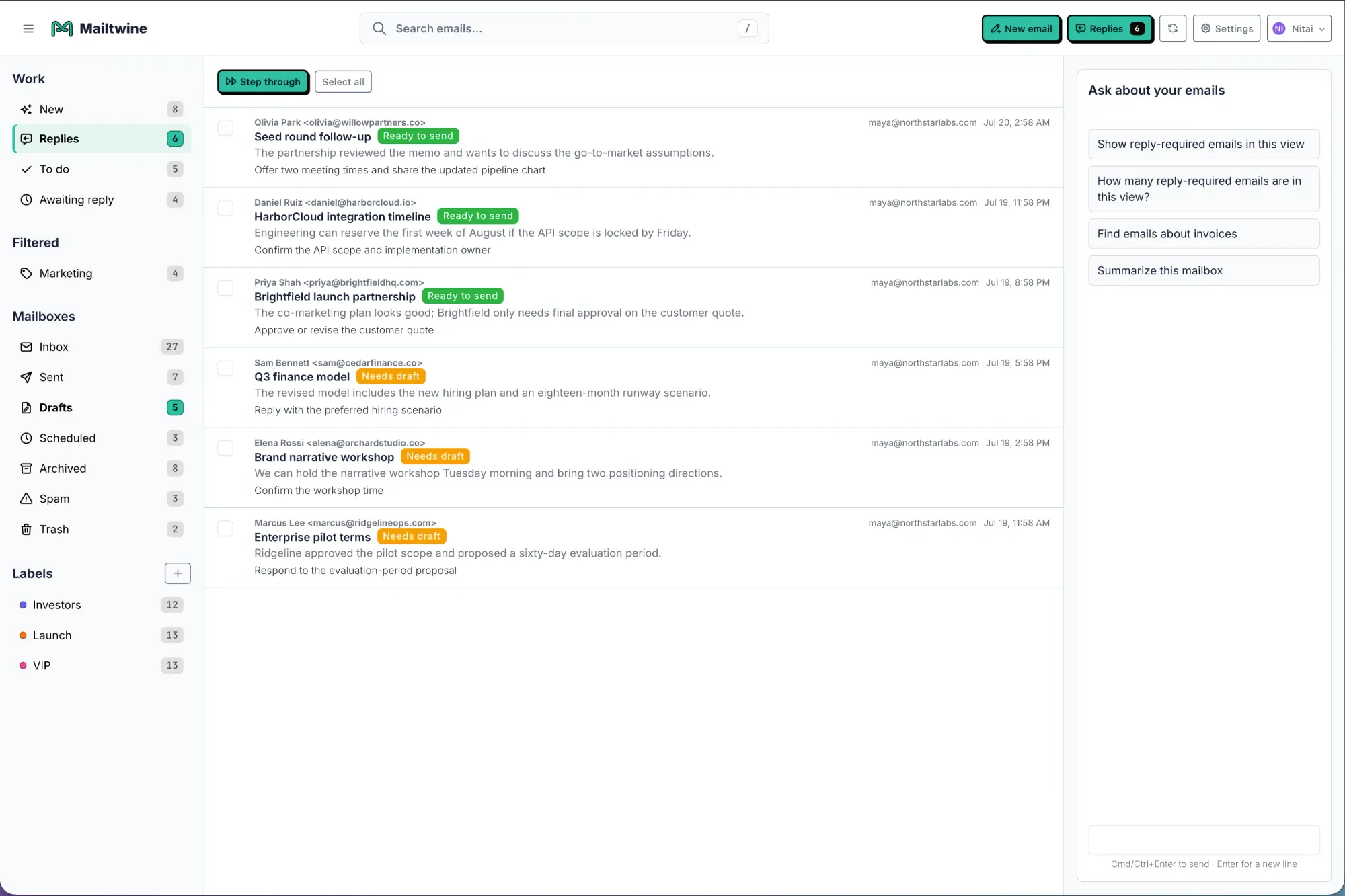
Short Product Demo: What AI Email Sorting Looks Like in Practice
Here is a simple example of how a company could use Mailtwine to sort an incoming shared inbox.
Scenario
A support inbox receives 300 messages per day from customers, vendors, internal teams, and automated systems.
Mailtwine Workflow
- Email arrives
- A new message enters the shared inbox through Helpmonks, Fastmail, or IMAP.
- AI classifies the message
- Mailtwine identifies the message as a customer support issue, billing request, sales inquiry, vendor update, or low-priority notification.
- Priority is assigned
- The message is marked as urgent, normal, or low priority based on content and context.
- Email is routed
- Urgent support issues move to the support queue.
- Billing questions move to Finance.
- Sales inquiries move to the sales queue.
- Low-priority updates stay out of the active work queue.
- Team acts
- The right person sees the right message with less manual sorting.
- Follow-up is tracked
- Messages that need a response can stay visible until resolved.
Before and After
| Workflow Area | Before AI Email Sorting | After AI Email Sorting |
|---|---|---|
| Inbox review | Team scans everything manually | AI classifies messages on arrival |
| Priority | Newest email appears first | Urgent work rises to the top |
| Ownership | Team decides manually | Messages route to the right queue |
| Follow-up | Depends on memory or flags | Reminders can be tied to workflow |
| Low-value messages | Mixed with important work | Separated from active queues |
Best Practices for Implementing Email Sorting
AI email sorting works best when teams define the workflow before turning on automation.
Use these steps:
- Start with 5 to 8 core categories
- Avoid creating too many labels at the start. Begin with categories that map to real team actions.
- Define urgency rules
- Decide what counts as urgent. Examples include blocked customers, legal deadlines, payment failures, executive requests, or SLA risk.
- Map each category to an owner
- Sorting without ownership creates cleaner clutter. Every category should have a team, queue, or next step.
- Keep humans in the loop for edge cases
- Let AI handle repeatable sorting, but review uncertain or high-risk messages before full automation.
- Review accuracy regularly
- Check false positives, missed urgent messages, and category drift. Improve rules and prompts based on real inbox behavior.
- Connect sorting to follow-up
- A sorted email still needs resolution. Add reminders, assignment logic, or queue review steps for messages that require action.
- Separate low-priority email from active work
- Newsletters, automated alerts, and routine updates should not compete with customer requests or revenue-related messages.
How to Sort Email With AI
AI email sorting is a workflow design problem, not just a software setup task.
Follow this process:
- Audit your inbox
- Review the last 2 to 4 weeks of email. Identify repeated message types, common senders, and missed follow-ups.
- Define sorting categories
- Create categories based on actions, not vague topics. “Needs customer reply” is more useful than “Customer.”
- Set priority criteria
- Decide which emails should jump the queue. Use urgency, customer value, deadlines, and operational risk.
- Choose routing logic
- Map each category to a team, person, shared queue, or workflow.
- Apply AI classification
- Use AI to classify messages based on content and context.
- Review and refine
- Track sorting accuracy and adjust categories as your inbox changes.
The outcome should be a managed queue where important messages are visible and routine messages do not drain attention.
Frequently Asked Questions
What is email sorting?
Email sorting is the process of organizing incoming email into categories, folders, labels, priorities, or queues. AI email sorting improves this by classifying messages based on meaning, urgency, and required action.
How does AI email sorting work?
AI email sorting reads the sender, subject, body, thread context, and message intent. It then categorizes the email, assigns priority, and can route it to the right queue or workflow.
Is AI email sorting better than email rules?
AI email sorting is better for complex inboxes because it can understand context. Traditional rules work well for simple sender or keyword logic, but they break when messages vary in wording or intent.
Can Mailtwine sort emails automatically?
Yes. Mailtwine helps companies triage and sort emails automatically using advanced AI features. It supports workflows such as categorization, prioritization, labeling, routing, and follow-up handling.
What email platforms does Mailtwine support?
Mailtwine works natively with Helpmonks, Fastmail, and IMAP. Microsoft 365 and Outlook.com are supported through Microsoft OAuth.
Does Mailtwine work as an AI email assistant for Outlook?
Yes. Mailtwine supports Outlook.com and Microsoft 365 through Microsoft OAuth, alongside Helpmonks, Fastmail, and standard IMAP. Teams can keep their existing accounts while adding triage and reply review.
What is the difference between email sorting and email triage?
Email sorting organizes messages into categories or queues. Email triage decides what should be handled first based on urgency, importance, and required action.
Can AI email sorting summarize long threads?
Email sorting and AI email summarization are related workflows. Sorting routes the message to the right place, while summarization helps the reviewer understand long threads faster.
Who needs inbox management software?
Inbox management software is useful for teams that handle shared inboxes, customer requests, sales inquiries, support issues, billing emails, or operational workflows. It is especially useful when missed emails create revenue, support, or compliance problems.
What makes an intelligent email assistant different from a normal email client?
An intelligent email assistant can interpret message intent, prioritize work, classify emails, and support automated workflows. A normal email client mainly receives, displays, searches, and stores messages.
Turn Email Sorting Into a System
Email sorting should not depend on manual folders, memory, or constant inbox checking. Teams need a system that identifies what each message means, decides how important it is, and moves it toward the right action.
Mailtwine gives companies an AI-powered way to triage and sort email automatically across supported inboxes. If your team is spending too much time cleaning up email instead of acting on it, try Mailtwine and turn your inbox into a managed workflow.